Find us at booth #83, join us for a harbor side happy hour, or catch Gorish’s talk.

Sept, 16-18 > Learn more


Tamanna Mishra

April 1, 2026
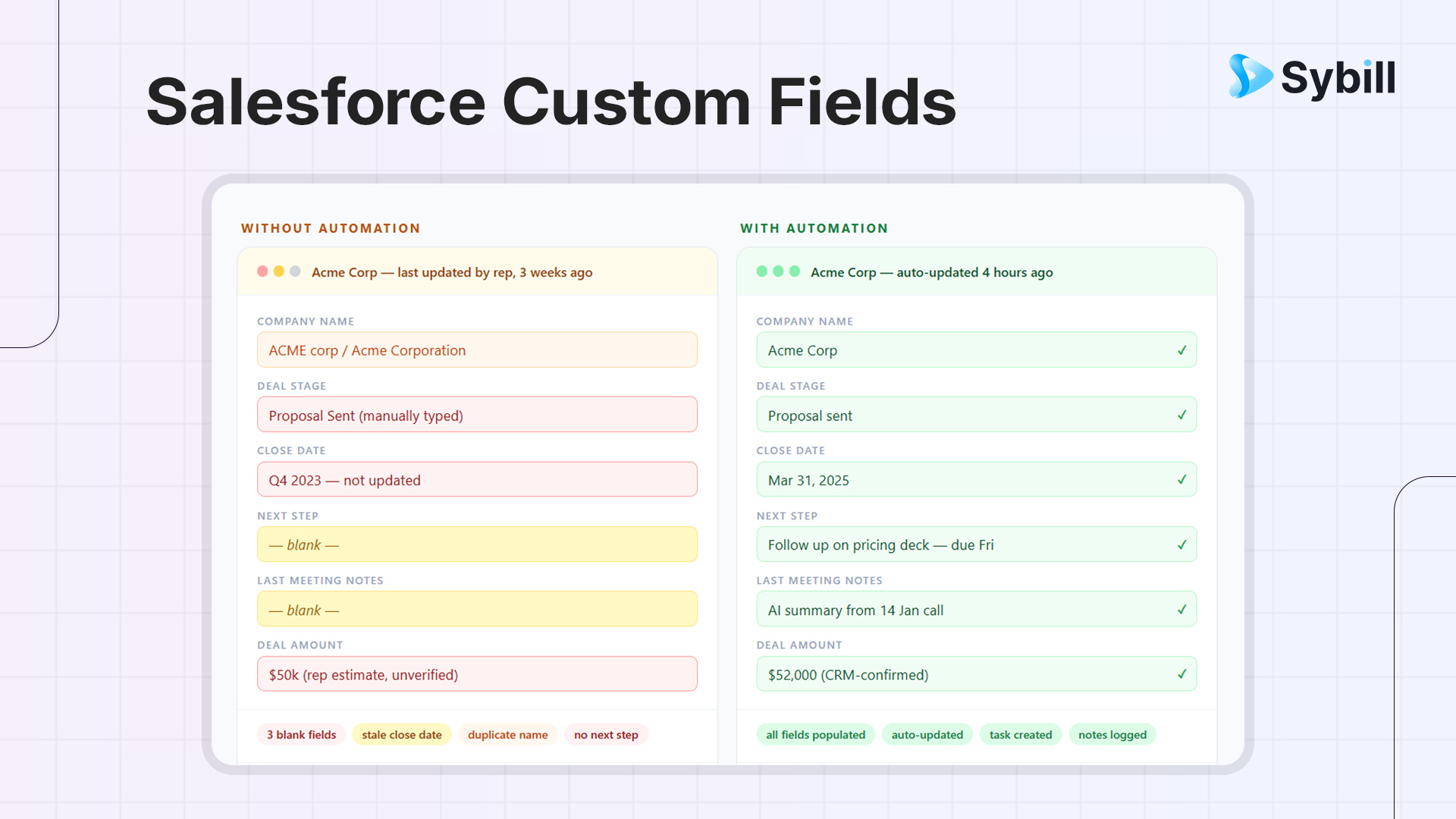
Every sales team has been here.
You add a few custom fields to Salesforce. Then a few more. Then suddenly your opportunity page looks like a tax form.
“Champion strength.”
“Decision criteria.”
“Pain points.”
“Use case priority.”
All important. All empty.
Custom fields don’t fail because they’re hard to create. They fail because they’re hard to maintain.
Reps forget to update them. Managers rely on outdated entries. Forecast calls turn into educated guesses.
This guide fixes that.
We’ll break down:
A Salesforce custom field is a user-created field that lets you capture data specific to your business.
Salesforce gives you standard fields like:
But your sales process is not standard. Custom fields let you track things like:
You can add these fields to:
When you create a Salesforce custom field, you define:
Salesforce custom fields exist because no two sales teams run the same playbook.
Let’s be fair. The intention is right.
Teams create custom fields to:
And it works. In theory.
In fact, most of the high-performing Salesforce users we speak to rely on custom fields to capture critical data.
But here’s what actually happens:
The result? A CRM full of fields that exist, but don’t mean anything.
Not all fields are created equal. The type you choose defines how usable your data is.
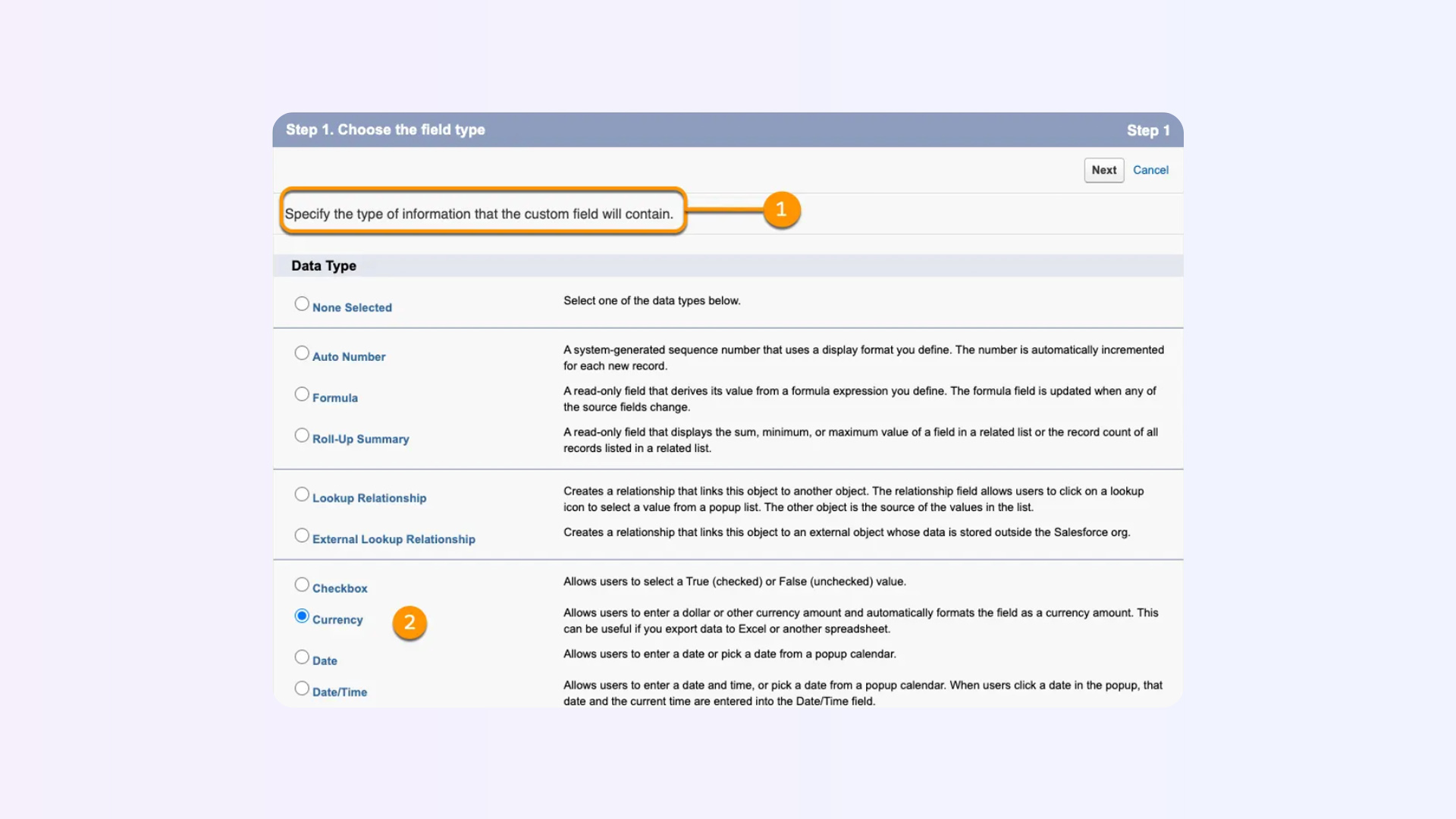
Typical Salesforce custom fields include:
Your data type determines how your data behaves. If you want clean reporting, avoid free-text wherever possible.
Here’s exactly how to create a custom field in Salesforce:
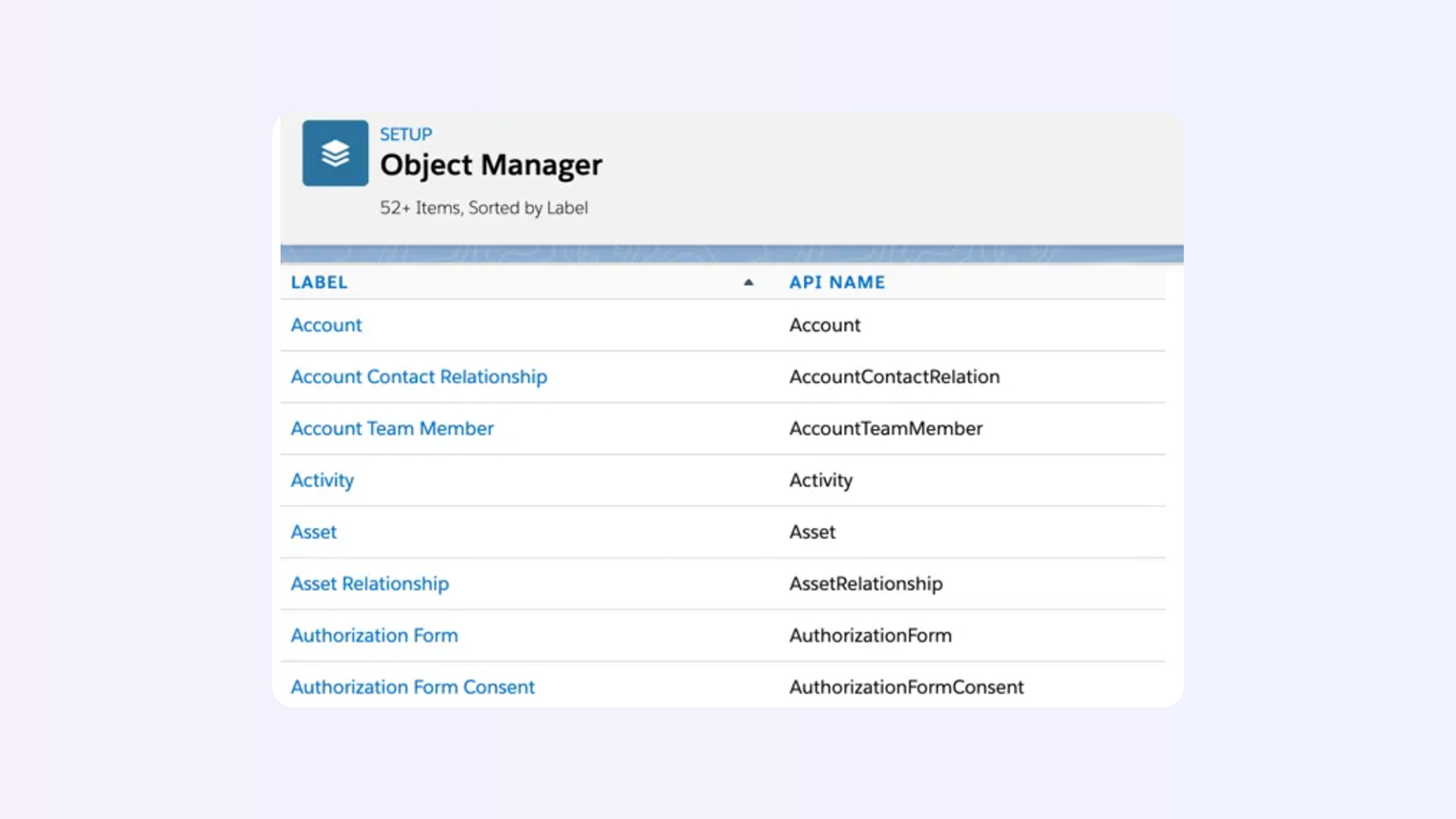
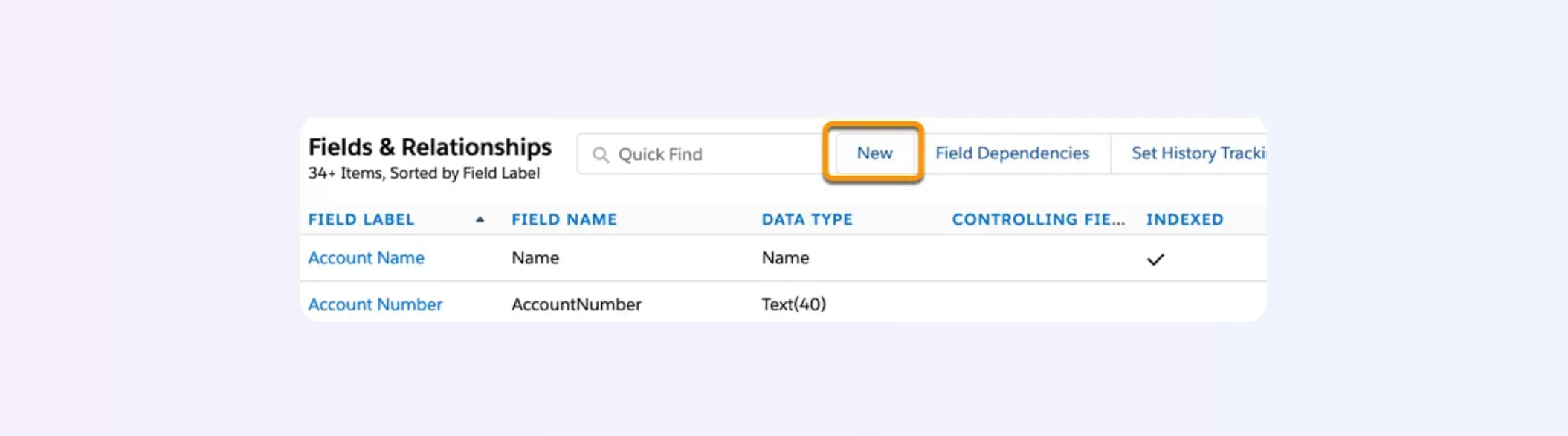
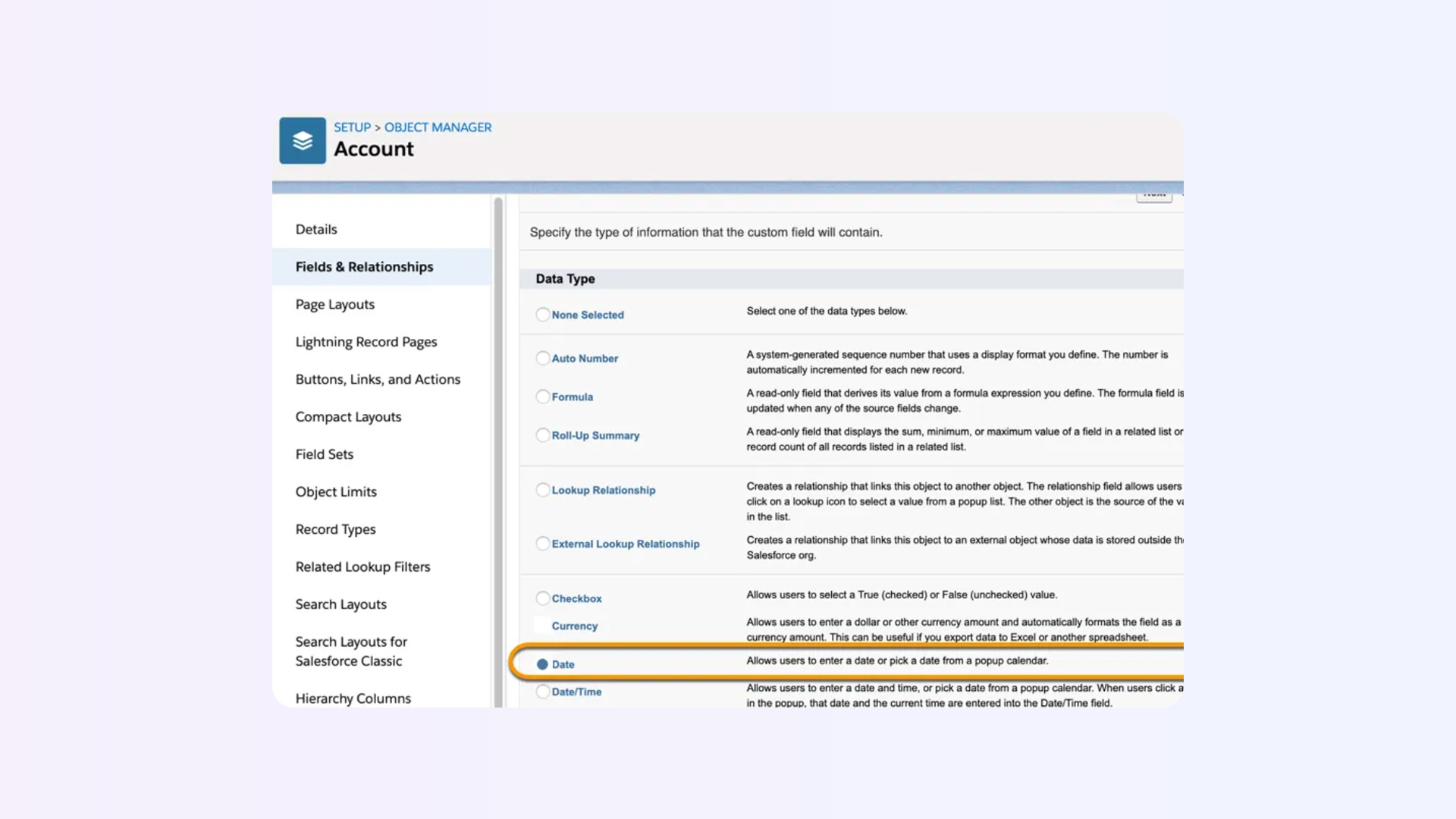
That’s it. You’re done.
Pro tips most Salesforce custom fields guides skip
Yes, you can create custom fields on the Task object.
But there are caveats:
Tasks are high-volume. Keep them lightweight.
Technically? A lot.
For example, the Enterprise Edition supports ~800 custom fields per object.
But that’s not your real limit.
After a point:
Rule of thumb: 50 well-used Salesforce custom fields beat 300 ignored ones.
This is where most teams mess up.
Good custom fields reduce friction. Bad ones create it.
Let’s say you’ve done everything right. Your fields are well-structured, clearly named, perfectly designed.
And still…
They don’t get updated.
Because:
So data becomes:
And suddenly your “data-driven” decisions aren’t data-driven at all.
This is where most Salesforce custom fields guides stop. But we won’t.
Because creating fields is not the problem. Updating them is.
RevOps creates 20 custom fields.
Sales reps fill maybe 5.
Managers trust none.
Also read:
Sybill flips this completely. Instead of asking reps to update fields, it does it for them.
Also read:
Sybill also gives you:
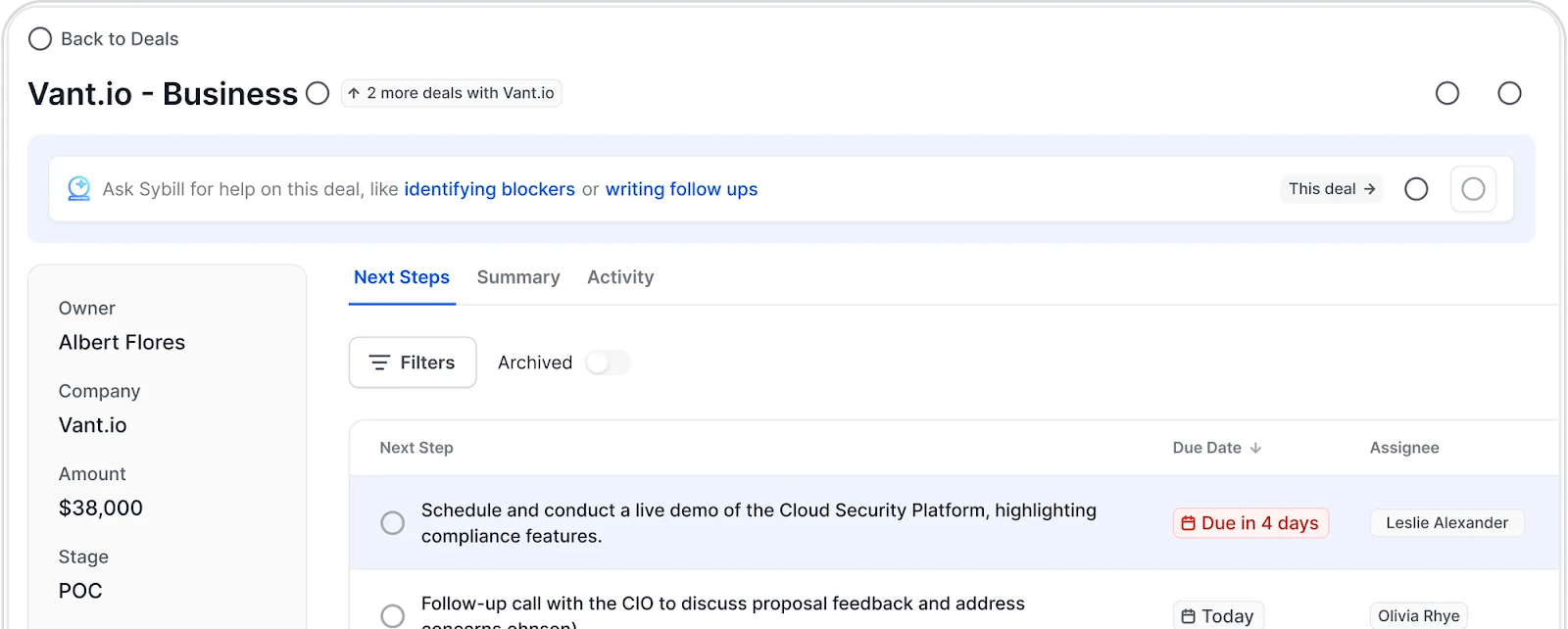
So instead of:
“Let me check Salesforce…”
You get:
“I already know everything about this deal.”
This is where most teams over-engineer.
More Salesforce custom fields doesn’t equal better CRM. Better structure + automation does.
Here’s the simple framework:
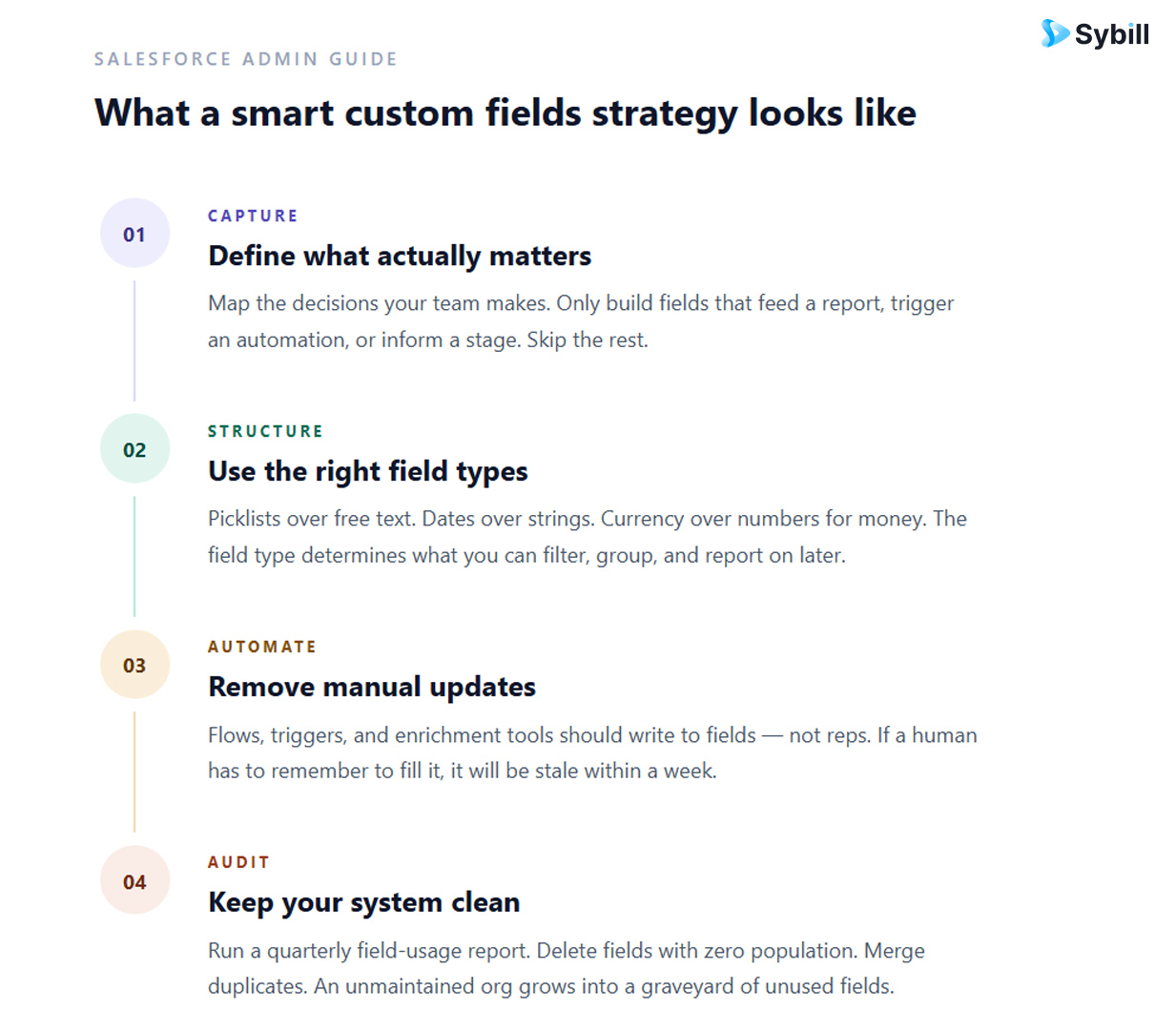
That’s how high-performing teams use Salesforce.
Custom fields are powerful. But only if they’re:
Otherwise, they’re just empty boxes in your CRM.
The best sales teams build systems where their Salesforce custom fields are always accurate.
And increasingly, that system includes AI. Because chasing reps for CRM updates?
That’s a bottleneck you don’t want to deal with. Nobody does.
If your Salesforce custom fields aren’t getting updated consistently, it’s not a rep problem. It’s a system problem.
Sybill fixes that.

Custom fields in Salesforce are user-defined data fields created to capture information specific to your business processes. While standard fields cover common CRM data like names and deal amounts, custom fields let teams track unique details such as qualification criteria, customer pain points, or product usage. They can be added to both standard and custom objects, helping teams structure data for better reporting, forecasting, and decision-making.
Standard fields are pre-built by Salesforce and designed to capture commonly used data such as contact details, opportunity value, and close date. Custom fields, on the other hand, are created by users to track business-specific information not included in the default setup. The key difference is flexibility. Standard fields are fixed, while custom fields allow organizations to tailor Salesforce to their unique sales processes and workflows.
Salesforce offers a variety of field types to store and structure data effectively. Common types include text fields for free-form input, number and currency fields for quantitative data, date fields for timelines, picklists for standardized options, checkboxes for true or false values, and formula fields that automatically calculate values. Choosing the right field type is critical, as it directly impacts data consistency, reporting accuracy, and usability across teams.
Custom fields in Salesforce are user-defined data fields created to capture information specific to your business processes. While standard fields cover common CRM data like names and deal amounts, custom fields let teams track unique details such as qualification criteria, customer pain points, or product usage. They can be added to both standard and custom objects, helping teams structure data for better reporting, forecasting, and decision-making.
Standard fields are pre-built by Salesforce and designed to capture commonly used data such as contact details, opportunity value, and close date. Custom fields, on the other hand, are created by users to track business-specific information not included in the default setup. The key difference is flexibility. Standard fields are fixed, while custom fields allow organizations to tailor Salesforce to their unique sales processes and workflows.
Salesforce offers a variety of field types to store and structure data effectively. Common types include text fields for free-form input, number and currency fields for quantitative data, date fields for timelines, picklists for standardized options, checkboxes for true or false values, and formula fields that automatically calculate values. Choosing the right field type is critical, as it directly impacts data consistency, reporting accuracy, and usability across teams.