Find us at booth #83, join us for a harbor side happy hour, or catch Gorish’s talk.

Sept, 16-18 > Learn more

%20(1).avif)
Mamta Tainwala

February 5, 2026
Recording on your phone isn't just about hitting a button anymore. With iOS 18, iPhone finally offers native call recording with automatic transcription, but it's region-dependent and announces recordings to all parties. Android users have more flexibility with built-in features on Samsung and Google Pixel phones, plus dozens of third-party apps like Cube ACR and ACR Phone. For simple voice recordings, both platforms offer excellent built-in apps (Voice Memos for iPhone, Sound Recorder for Android) with no time limits beyond your storage capacity. The legal landscape varies dramatically by location, with some states requiring one-party consent while others demand all-party notification. For professional use cases like recording Zoom, Google Meet, or Microsoft Teams calls on your phone, specialized tools like Sybill's mobile app deliver transcription, AI summaries, and CRM integration that consumer apps can't match. This comprehensive guide covers every recording method, legal requirements, best apps for both platforms, and exactly when to use each solution.
Picture this: you're in your car when your doctor calls with test results and next steps for treatment. You're scrambling for paper that doesn't exist, trying to remember complex medical terminology while driving. Or maybe you're on a customer call walking between meetings, and the client mentions three critical requirements you need to document. Or perhaps a family member shares an address, phone number, and detailed directions while you're hands-full with groceries.
These moments happen constantly. And in every single one, the solution is already in your pocket.
Your phone isn't just for scrolling social media and texting anymore. It's a sophisticated recording studio capable of capturing phone calls, voice memos, important conversations, and even professional video meetings. The technology has evolved dramatically, especially with iOS 18 introducing native call recording and Android manufacturers building recording directly into their dialer apps.
But here's the thing: knowing your phone can record is very different from knowing how to record, which apps work best, what's actually legal in your location, and which solution fits your specific needs.
This isn't another surface-level listicle that tells you to "just download an app." This is your complete guide to every type of recording your phone can handle in 2025. We'll cover the built-in features you might not know exist, the third-party apps that actually work (because many don't anymore), the legal requirements that could save you from serious trouble, and the professional solutions that turn recordings into actionable insights.
Whether you need to record a phone call on your iPhone, capture voice memos on Android, document important conversations, or record professional meetings from your phone, this guide has you covered.
Let's start with the question that brings most people here: can I actually record phone calls on my phone?
For years, iPhone users faced a frustrating reality: Apple didn't allow call recording. The company cited privacy concerns and varying legal requirements across jurisdictions. Third-party apps existed but required clunky workarounds like conference calling or external services.
Then iOS 18 arrived and changed everything.
With iOS 18.1 and later, Apple finally introduced native call recording directly in the Phone app. Here's what makes this a game changer for iPhone users:
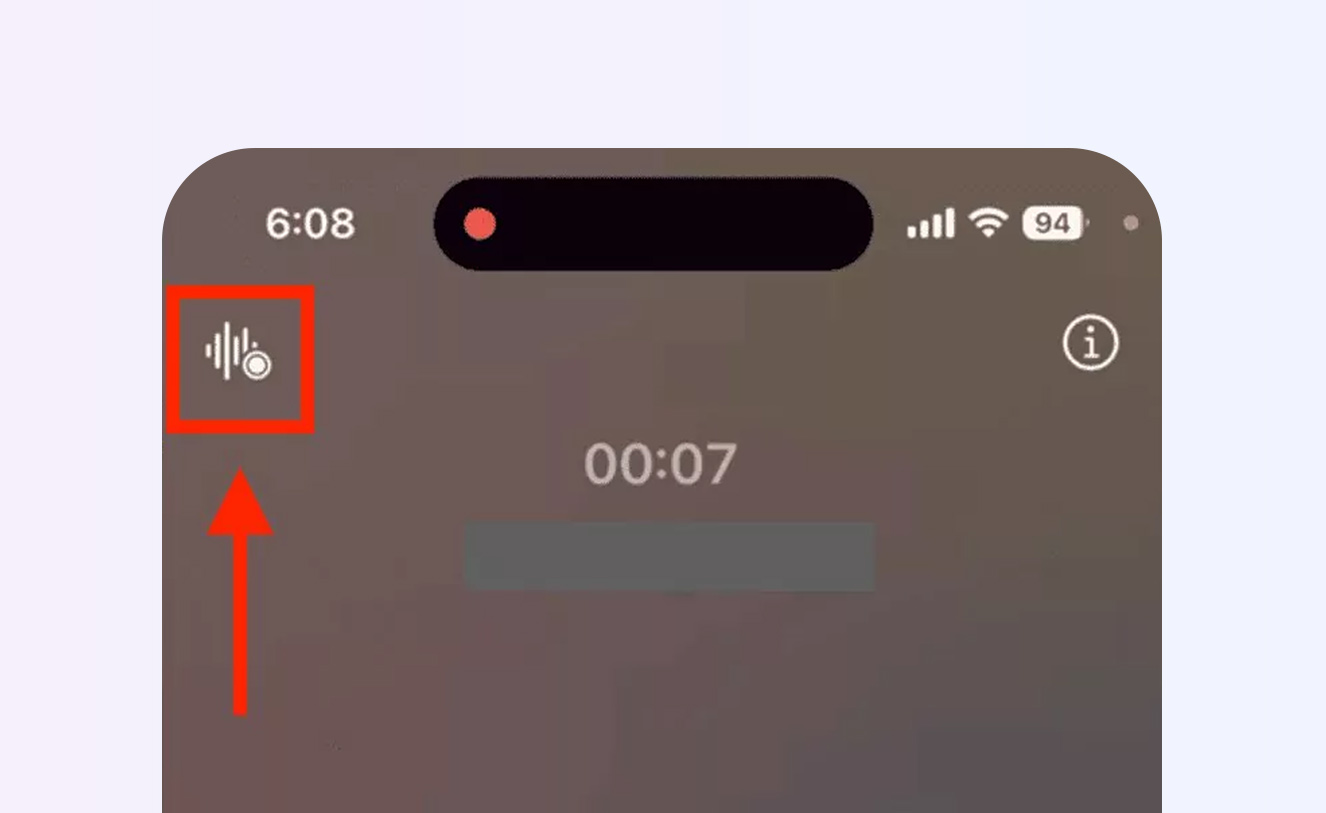
How it works: During any phone call, you'll see a recording button in the top left corner of your screen. Tap it, and the call recording begins. Both parties hear an audio notification stating the call is being recorded. After the call ends, the recording is automatically saved to the Notes app with a transcript generated by Apple Intelligence.
What you get: Not just the audio recording, but an AI-generated transcript and summary of the call. This transforms raw audio into searchable, actionable information without manual work.
The legal compliance: By automatically announcing the recording to all parties, Apple builds legal protection directly into the feature. This satisfies two-party consent requirements in states like California, Florida, and Illinois.
Here's exactly how to record a phone call using iPhone's native feature:
Important notes: The recording feature is region-dependent. Apple only enables it in locations where call recording is legally permitted. If you don't see the record button, the feature may not be available in your country or region. Additionally, the audio notification announcing the recording is not included in the saved recording itself, which has raised questions about legal sufficiency in two-party consent states.
Not everyone has access to iOS 18's native call recording. Older iPhone models, users who haven't updated, or those in regions where Apple hasn't enabled the feature need alternatives.
Third-party apps that still work:
TapeACall Pro remains the most reliable third-party option for iPhone call recording. It works by using a conference call method: when you want to record, you add TapeACall's line to your call, and their servers record the conversation. You can then download the recording from their app.
Pros: Works on any iPhone, records both incoming and outgoing calls, international support Cons: Requires subscription ($10.99/month or $69.99/year), uses your minutes for the conference line, requires cellular connection
Rev Call Recorder offers completely free call recording for users with US phone numbers. The catch? You can only record incoming calls, not outgoing ones. For many use cases (customer calls, interview subjects calling you), this limitation is acceptable given the zero cost.
Pros: Completely free, no ads, clean interface, optional paid transcription services Cons: US phone numbers only, incoming calls only, requires merging calls
Google Voice technically offers call recording for free, but with significant limitations. You must use Google Voice as your phone number (not your regular carrier number), and it only works for incoming calls. Press 4 during the call to start recording, and all parties hear an announcement.
Pros: Free, legal compliance built-in Cons: Requires using Google Voice number, incoming only, limited functionality
Many guides suggest using Voice Memos or putting your phone on speaker to record calls. Here's the reality: this doesn't work for phone calls. iOS specifically blocks Voice Memos from capturing audio during phone calls due to privacy protections. The same restriction applies to screen recording with audio.
Voice Memos is excellent for recording conversations in person, lectures, notes, and audio when not on a phone call. But for actual phone call recording, you need one of the solutions mentioned above.
Android users have historically had more recording flexibility than iPhone users, but Google's evolving policies and manufacturer differences create a complex landscape in 2025.
Many Android phones now include native call recording in their dialer apps. Samsung, Google Pixel (in certain regions), OnePlus, Xiaomi, and Huawei devices often have this feature built-in.
How to check if your phone has native recording:
Samsung phones: Most Galaxy devices sold internationally include call recording. Open the Phone app, tap the three dots, select Settings, and look for "Record calls." You can set it to record all calls automatically or record manually by tapping the record button during calls.
Google Pixel phones: Call recording availability varies by country due to legal restrictions. In supported regions, open the Phone app during a call and look for the record button. Google automatically announces "This call is being recorded" to all parties.
OnePlus, Xiaomi, and other Chinese manufacturers: Often include robust call recording as a standard feature in their dialer apps, though availability may be restricted in certain markets.
The regional restriction reality: Even if your phone model supports call recording, it might be disabled in your region. This is particularly common in the US, EU, and other markets with strict recording consent laws. Manufacturers often disable the feature entirely rather than risk legal issues.
When native recording isn't available, third-party apps fill the gap. However, Google's Play Store policies have made this increasingly difficult. Many apps were banned for using accessibility APIs to capture calls. Here are the solutions that still work in 2025:
Cube ACR (Cube Call Recorder)
Cube ACR is one of the most popular and reliable call recorders for Android. It can record regular phone calls plus VoIP calls from WhatsApp, Telegram, Skype, Facebook Messenger, Viber, and more.
How it works: Download Cube ACR from the Google Play Store, grant necessary permissions (phone, storage, microphone), and enable accessibility services. The app automatically records calls based on your settings.
Pros: Records both cellular and VoIP calls, automatic cloud backup to Google Drive or Dropbox, excellent audio quality, works on most Android devices Cons: Free version has limited features, premium costs $7.49/month or $41.99/year, effectiveness varies by device
ACR Phone with APH (ACR Phone Helper)
This solution cleverly bypasses Google's Play Store restrictions by splitting functionality across two apps. ACR Phone is the main dialer app available on Play Store, while APH (ACR Phone Helper) is a companion app you download separately that enables actual recording functionality.
How it works: Install ACR Phone from Play Store and APH from the developer's website. Grant all permissions to both apps. The combination allows recording without violating Play Store policies.
Pros: Works on devices where other solutions fail, one-time purchase ($6.99) removes ads, dialer replacement with additional features like caller ID Cons: Requires installing apps from outside Play Store (APH), setup more complex than single-app solutions
Automatic Call Recorder by Appliqato
This straightforward app does exactly what its name suggests: automatically records all your calls without manual intervention.
How it works: Install from Play Store, grant permissions, and the app starts recording every call automatically. You can later delete recordings you don't need.
Pros: Set-and-forget automatic recording, free with ad-supported version, simple interface Cons: No VoIP support, ads in free version, $6.99 to remove ads
callX
callX offers a modern interface with automatic recording, caller ID, and cloud synchronization features.
Pros: Clean design, cloud backup, automatic recording options Cons: Subscription required for full features ($4.49/month), reliability varies by device
If you're seeing outdated recommendations for apps like "Call Recorder," "Auto Call Recorder," or other generic names, understand that many stopped working after Google's 2022 accessibility API restrictions. Google banned apps from using accessibility features to record calls, which broke most recording apps overnight.
The apps that still work either:
Always check recent reviews and update dates before downloading call recorder apps for Android.
Wi-Fi calling breaks most apps: If you have Wi-Fi calling enabled on your phone, most third-party recording apps won't work. You'll need to disable Wi-Fi calling in your phone settings.
Device and Android version matter: Android 10 and later versions have increasingly strict recording restrictions. Newer devices may struggle with third-party recording apps even when they work on older devices.
Recording quality varies: Some apps can only record one side of the conversation (your voice, not the other party's) depending on your phone's hardware and Android version. This makes them nearly useless for most purposes.
Root access solves most issues: Rooted Android phones can bypass most restrictions and use powerful recording apps. However, rooting voids warranties, poses security risks, and isn't practical for most users.
Get started for free with Sybill and never miss important details from your calls again. Sybill's mobile app works on both iPhone and Android to record, transcribe, and generate AI summaries of your Zoom, Google Meet, and Microsoft Teams calls directly from your phone.
Not every important conversation happens on a phone call. Sometimes you need to record in-person conversations, capture voice memos, document lectures, or save audio notes. Both iPhone and Android excel at basic voice recording with built-in apps that are surprisingly powerful.
Every iPhone includes the Voice Memos app, and it's far more capable than most people realize.
How to record a voice memo on iPhone:
Advanced iPhone voice recording features:
Audio quality modes: iPhone supports three recording modes depending on your model:
To change modes: Settings > Apps > Voice Memos > Recording Mode
Background noise reduction: Newer iPhones can filter out background sounds during recording:
Editing capabilities: Voice Memos includes built-in editing tools:
No time limit: You can record for hours as long as you have available storage. Voice Memos typically uses less than 1MB per minute, so even lengthy recordings won't fill your phone quickly.
Cloud sync: With iCloud enabled, your voice memos automatically sync across all your Apple devices (iPhone, iPad, Mac), making them accessible anywhere.
Android phones come with built-in voice recording apps, though the specific app name and features vary by manufacturer.
Google Pixel Recorder app:
Google's Recorder app (available on Pixel phones and downloadable on some other Android devices) is arguably the best voice recording app for Android:
Features:
How to use it:
Samsung Voice Recorder:
Samsung Galaxy devices include Voice Recorder with these capabilities:
Generic Android Sound Recorder:
Most Android phones include a basic Sound Recorder or Audio Recorder app. While features vary, they generally offer:
To find your voice recorder: Check your app drawer or search for "Recorder," "Voice," or "Audio" in your phone's search.
If built-in apps don't meet your needs, consider these third-party options:
Rev Voice Recorder (iOS and Android):
Otter.ai (iOS and Android):
Notta (iOS and Android):
Position matters: Hold your phone 6-12 inches from the sound source. Too close creates distortion, too far captures too much background noise.
Use airplane mode: Recording drains battery, but incoming calls or notifications can interrupt recording or create audio artifacts. Airplane mode prevents interruptions while allowing recording to continue.
External microphones upgrade quality: For professional recordings, consider Lightning (iPhone) or USB-C (Android) external microphones that significantly improve audio quality.
Test before important recordings: Always do a quick test recording to ensure your microphone is working properly and capturing at the right volume.
Wired headphones work as microphones: In a pinch, wired earbuds with inline microphones can serve as external mics, often capturing better audio than your phone's built-in microphone.
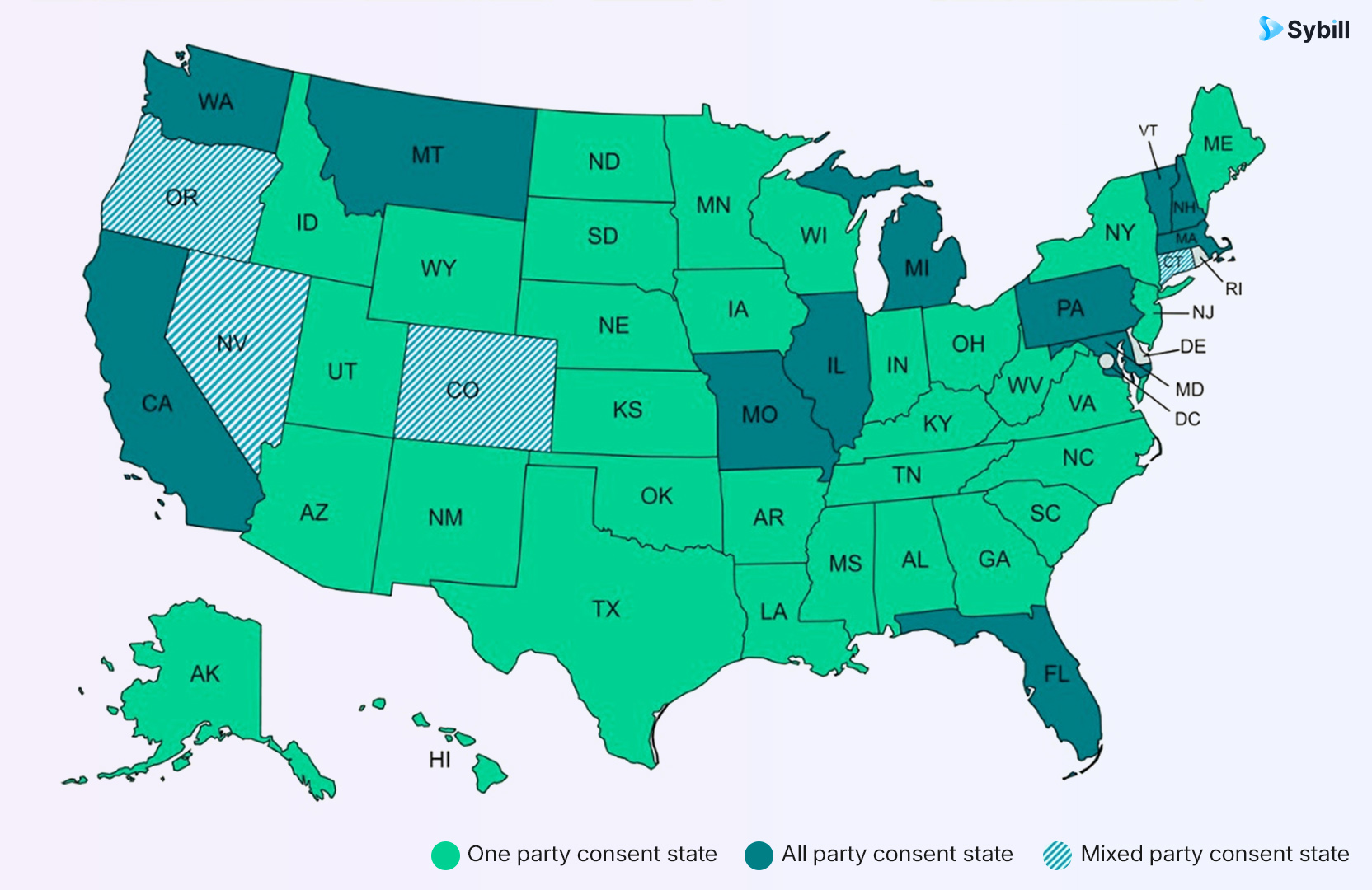
This is the most critical section in this entire guide. Recording calls when it's illegal can result in criminal charges, civil lawsuits, or financial penalties. The legal landscape varies dramatically by location, and ignorance isn't a defense.
One-party consent states (38 states):
In one-party consent states, only one person in the conversation needs to know about the recording. Since you know you're recording, that satisfies the legal requirement. You do not need to inform the other party.
One-party consent states include: Alabama, Alaska, Arizona, Arkansas, Colorado, Georgia, Hawaii, Idaho, Indiana, Iowa, Kansas, Kentucky, Louisiana, Maine, Michigan, Minnesota, Mississippi, Missouri, Nebraska, Nevada, New Jersey, New Mexico, New York, North Carolina, North Dakota, Ohio, Oklahoma, Rhode Island, South Carolina, South Dakota, Tennessee, Texas, Utah, Vermont, Virginia, West Virginia, Wisconsin, and Wyoming.
Two-party consent states (12 states):
In two-party (or all-party) consent states, everyone on the call must be informed and agree to the recording before you can record. This typically means announcing "This call is being recorded" at the beginning and getting verbal consent.
Two-party consent states include: California, Connecticut, Florida, Illinois, Maryland, Massachusetts, Michigan (though Michigan is legally ambiguous), Montana, New Hampshire, Pennsylvania, and Washington.
Which law applies when calling across state lines?
This is legally complex. Generally, the law of the state where the recording party is located applies. However, some legal experts argue that the stricter law (two-party consent) should apply when calling from a one-party state to a two-party state.
Best practice: When in doubt, assume two-party consent applies. Always inform all parties you're recording. This protects you legally and maintains trust in relationships.
Federal law follows one-party consent, but with important exceptions. Federal law prohibits recording conversations "for the purpose of committing a crime or tort." Recording for purposes of blackmail, harassment, or other illegal activities is always illegal regardless of state consent laws.
European Union (GDPR):
Under GDPR, recording phone calls typically requires explicit consent from all parties. You must inform people the call is being recorded, explain why it's being recorded, how it will be used, and how long it will be stored. Organizations must have a legitimate legal basis for recording under GDPR.
United Kingdom:
Generally requires consent from all parties for personal recordings. Business recordings for training, quality assurance, or legal compliance have different rules but must be announced.
Canada:
Follows one-party consent similar to the US, but provincial laws may vary.
Australia:
Recording laws vary by state and territory, with most requiring one-party consent for private individuals but stricter rules for businesses.
Always check local laws before recording calls, especially when calling internationally.
iOS 18's automatic recording announcement and many Android built-in features play notifications to all parties. However, legal experts have raised questions about sufficiency:
The notification isn't recorded: When iOS 18 announces "This call is being recorded," that announcement doesn't appear in the saved audio file. If someone later claims they weren't notified, you have no audio proof.
Verbal confirmation is stronger: Some lawyers recommend explicitly saying "I'm recording this call for my records, is that okay?" and getting verbal consent that's captured in the recording itself.
Business recordings have different rules: If you're recording calls for business purposes (customer service, sales, debt collection), additional regulations may apply including specific disclosure requirements.
Regardless of consent laws, recording is illegal when:
Just because you can legally record a call doesn't mean it's automatically admissible as evidence in court. Factors affecting admissibility include:
Always consult with an attorney before relying on recordings for legal purposes.
Phone calls aren't the only important conversations happening on mobile devices. With remote work becoming standard, many professionals take Zoom meetings, Google Meet calls, and Microsoft Teams conferences from their phones. These require different recording approaches than traditional phone calls.
Call recording apps designed for cellular calls cannot capture Zoom, Google Meet, or Teams meetings. These apps use fundamentally different technology:
Zoom mobile recording:
Zoom allows recording on mobile devices, but only for paid accounts and with restrictions:
Google Meet mobile recording:
Google Meet recording on mobile requires:
Microsoft Teams mobile recording:
Teams allows recording on mobile with:
The common limitations: These built-in options all share similar restrictions: they require paid accounts, they're controlled by the meeting host, they save to cloud services (consuming cloud storage), and they offer limited post-meeting processing beyond basic transcripts.
This is where Sybill's mobile app transforms how professionals handle mobile meetings.
What makes Sybill different for mobile recording:
Unlike basic call recorders or limited built-in features, Sybill is purpose-built for professional business conversations on mobile:
Cross-platform support: Works with Zoom, Google Meet, and Microsoft Teams directly from your iPhone or Android device.
AI-powered transcription and summaries: Doesn't just record audio. Sybill generates accurate transcriptions and AI summaries that capture key decisions, action items, and important discussion points.
CRM integration: Automatically updates your CRM (Salesforce, HubSpot, etc.) with meeting notes, eliminating manual data entry after mobile calls.
No cloud storage limits: Recordings and transcripts don't count against your personal cloud storage quotas.
Privacy-focused: Designed for business use with appropriate security and compliance features.
How it works: Install the Sybill app on your iPhone or Android device, connect it to your calendar and CRM, and it automatically joins and records your scheduled meetings. After each meeting, you receive transcripts, summaries, and automated CRM updates without lifting a finger.
Use cases where Sybill excels:
Sales professionals on the go: Recording customer calls from airports, coffee shops, or between meetings without sacrificing quality or missing follow-up details.
Customer success managers: Documenting customer conversations from anywhere, ensuring handoffs include complete context.
Remote team members: Recording team meetings on mobile without relying on desktop setups or asking permission from meeting hosts.
Executives in back-to-back meetings: Capturing meeting details while moving between locations without manual note-taking.
Get started for free with Sybill and experience the difference between basic phone recording and professional business call intelligence.
Having the technical ability to record is one thing. Using recording effectively and ethically is another. Here are best practices that separate casual recorders from professionals who leverage recordings as genuine tools.
Yes, one-party consent states legally allow recording without notification. But legal doesn't mean ethical or wise. Announcing recordings:
Builds trust: People respect transparency. Surprise recordings discovered later destroy relationships.
Ensures better conversations: When people know they're being recorded for legitimate reasons (documentation, accuracy, legal protection), they often communicate more carefully and clearly.
Protects you legally: If someone later claims they didn't consent, your recording itself contains proof you announced it.
Avoids misunderstandings: Clear communication about recording prevents the other party from feeling deceived or tricked.
Simple announcement scripts:
"I'm recording this call for my records, is that okay with you?" "I'd like to record our conversation so I don't miss any important details, do you mind?" "For accuracy, I'm going to record this call. Is that alright?"
Voice Memos quickly accumulate into dozens of files named "New Recording 1," "New Recording 2," etc. Without organization, they become useless.
Naming convention: Immediately rename recordings with: Date_Person/Topic_Purpose
Examples:
Folders/categories: Both iPhone and Android allow organizing recordings into folders. Create categories like:
Backup important recordings: Don't rely solely on your phone. Back up critical recordings to:
Audio recordings are searchable only by filename. Transcripts make content searchable, shareable, and actionable.
Automatic transcription options:
Manual transcription for critical recordings: For legal, medical, or business-critical recordings, consider professional human transcription services that offer certified accuracy.
Recordings accumulate quickly. Delete non-critical recordings after you've:
Keeping unnecessary recordings creates privacy risks and consumes storage.
Some recordings contain private information (medical records, financial data, legal discussions, confidential business information). Protect them:
Password-protect sensitive files: Use apps like Files (iOS) or Samsung Secure Folder (Android) to lock recordings behind passwords or biometric security.
Avoid cloud syncing for sensitive content: Consider disabling automatic cloud backup for recordings containing private information.
Encrypted storage options: For highly sensitive recordings, use encrypted storage services or encrypted containers on your phone.
Recording isn't always the answer. Consider:
Adversarial situations: If you're recording because you expect conflict or need evidence of wrongdoing, the relationship is already strained. Recording might be necessary but recognize it escalates situations.
Personal conversations: Recording intimate partner conversations, family discussions, or friendship talks can signal distrust and damage relationships even when legal.
Professional boundaries: Constantly recording work conversations might make colleagues uncomfortable and harm collaboration.
Use recording as a tool for accuracy and documentation, not as a weapon or sign of mistrust.
Recording should be straightforward, but various issues can prevent it from working correctly. Here's how to diagnose and fix common problems.
Possible causes:
Solutions:
Possible causes:
Solutions:
This is common on newer Android devices with restrictions on call audio access.
Solutions:
This is by design on iPhone. iOS blocks Voice Memos from capturing audio during phone calls for privacy reasons.
Solution: Use proper call recording apps (TapeACall, Rev Call Recorder, or iOS 18 native recording)
Possible causes:
Solutions:
Solutions:
Your phone's recording capabilities are powerful, but they're tools, not magic solutions. The most sophisticated recording setup won't help if you don't have clear purposes for recordings, systematic ways to organize them, and ethical frameworks for when to use them.
Recording works best when you:
The landscape of phone recording has evolved dramatically in 2025. iOS 18 brought native recording to iPhone users. Android manufacturers continue refining built-in features. AI-powered transcription and summarization transform raw audio into actionable intelligence. The technology has never been better.
But technology alone doesn't make recordings valuable. Your judgment, organization, and ethical use of recording tools determine whether recorded conversations become useful documentation or wasted storage space.
Start with one type of recording that solves a real problem you face. Master that before expanding to other use cases. Build systems for organizing and processing recordings. And always, always prioritize transparency and consent over capturing conversations secretly.
Your phone is an incredible recording device. Now you know exactly how to use it.
Ready to transform how you handle phone recordings? Get started for free with Sybill and experience AI-powered call intelligence that automatically records, transcribes, and summarizes your Zoom, Google Meet, and Microsoft Teams calls from your mobile device. No more frantic note-taking during calls. No more worrying about missing important details. Just clear transcripts, actionable summaries, and automated CRM updates so you can focus on the conversation, not the documentation.
No, and you shouldn't even try. With iOS 18, Apple's native recording feature automatically announces to all parties that the call is being recorded, and this announcement is legally required in two-party consent states like California, Florida, and Illinois. Even in one-party consent states where you're technically allowed to record without notification, doing so secretly erodes trust and can damage personal and professional relationships. Third-party apps that claim to record secretly either don't work reliably or put you at legal risk. The ethical and practical approach is always to announce you're recording. Most people will consent when you explain the legitimate reason (accuracy, documentation, records). If someone refuses consent to recording, you should either proceed without recording or end the conversation. Recording someone without their knowledge when they've explicitly refused consent is ethically wrong and may be illegal regardless of your state's consent laws.
The answer depends on your specific Android device. If your phone has built-in call recording (Samsung Galaxy, Google Pixel in certain regions, OnePlus, Xiaomi), use that first as it's the most reliable and integrated solution. If your phone lacks native recording, Cube ACR offers a robust free version with ads that records both regular phone calls and VoIP calls (WhatsApp, Telegram, Skype). The premium version costs $7.49/month but the free version works for basic needs. For a completely free option with no ads, ACR Phone combined with APH (ACR Phone Helper) works well though setup is more complex and requires downloading APH from outside the Google Play Store. Automatic Call Recorder by Appliqato is another straightforward free option with ad support. Test whichever app you choose before relying on it for important calls, as compatibility varies significantly between Android devices and OS versions. Remember to disable Wi-Fi calling as it breaks most third-party recording apps.
No, the Voice Memos app on iPhone has no time limit beyond the available storage space on your device. You can record for hours or even days theoretically. Voice Memos typically uses less than 1MB per minute of audio, so even a 60-minute recording only consumes about 60MB of storage. A 128GB iPhone with 20GB free could theoretically record over 300 hours of audio. However, practical limitations exist: your iPhone's battery will drain during extended recordings (especially with screen on), recording quality may degrade for extremely long recordings, and managing very long audio files becomes cumbersome. For recordings longer than 1-2 hours, consider breaking them into segments by pausing and resuming recording. This creates multiple files that are easier to manage, transfer, and process. The same applies to other recording scenarios like phone call recording on iOS 18 or using Sybill for meeting recordings. If you're worried about battery life during long recordings, connect your iPhone to power and enable Low Power Mode (though this reduces some performance features).