Find us at booth #83, join us for a harbor side happy hour, or catch Gorish’s talk.

Sept, 16-18 > Learn more

%20(1).avif)
Mamta Tainwala

May 15, 2026
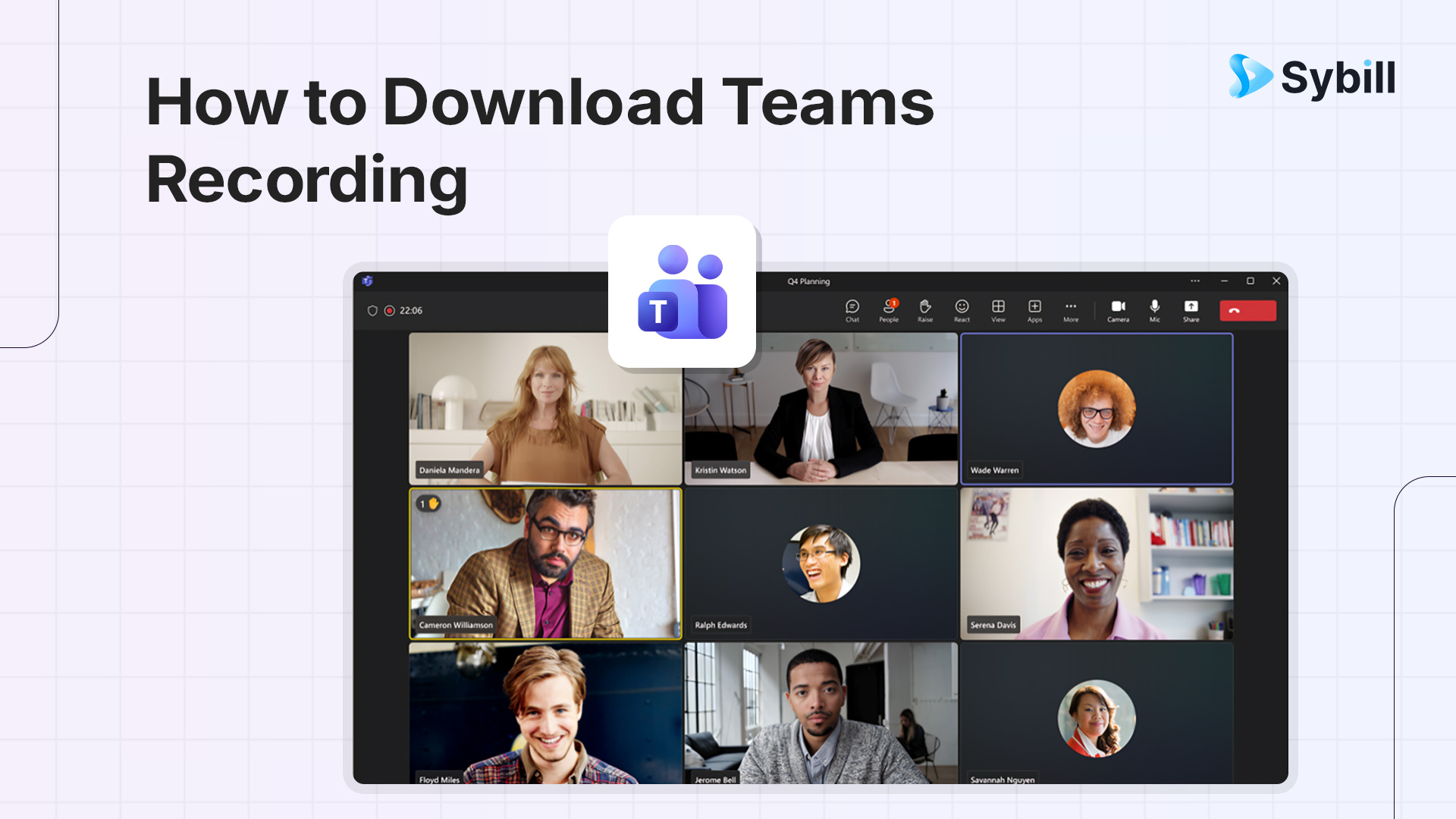
Microsoft Teams stores meeting recordings in OneDrive (for personal recordings) or SharePoint (for channel meetings). To download a Teams recording: locate the recording in the chat/channel where it was posted, click the three dots next to the video, select "Download," and the MP4 file saves to your device. However, raw MP4 files don't include transcripts, searchable summaries, or action items - which is why sales and customer-facing teams increasingly use AI meeting recorders like Sybill that automatically capture, transcribe, summarize, and sync meeting intelligence to CRM rather than just creating video files you'll never watch.
To download a Microsoft Teams meeting recording, go to the meeting chat or channel where the recording was shared, click the three-dot menu on the recording, and select "Open in OneDrive" or "Open in SharePoint," then click Download from the file viewer — personal meeting recordings save to OneDrive under the Recordings folder, while channel meeting recordings save to the channel's SharePoint site under Recordings. For sales teams that need more than just raw recordings, AI meeting tools like Sybill automatically capture Teams meetings, generate structured summaries with action items, update CRM fields from the conversation, and draft follow-up emails — going beyond simple recording download to turn every meeting into actionable deal intelligence.
In Inception, they were trying to extract information from someone's dreams, but the deeper they went, the harder it was to find what they were looking for. That's basically what trying to download a Teams recording feels like.
You know the recording exists. You were in the meeting. Someone definitely clicked "record." But now, you need to share that customer call with your manager, and you're clicking through OneDrive folders, SharePoint sites, Teams channels, and chat histories like you're navigating dream levels.
"Where do Teams recordings go?" becomes your existential question of the day.
Microsoft Teams makes recording meetings easy (one button click), but actually finding and downloading those recordings later? That's where things get messy. The file lives in OneDrive... or maybe SharePoint... or possibly both... depending on who started the recording and whether it was a channel meeting or a private call.
And even when you finally locate the recording and successfully download it, you're left with a 47-minute MP4 file that nobody will watch. No transcript. No summary. No searchable content. Just a video file sitting in your downloads folder next to 83 other recordings you've never opened.
This guide solves all of that. We'll cover exactly how to download a Teams recording (step-by-step for every scenario), where Teams actually stores recordings (and why it's inconsistent), how to troubleshoot when recordings are missing, and most importantly, why the smartest teams have moved beyond downloading MP4 files to using AI meeting intelligence that makes recordings actually useful.
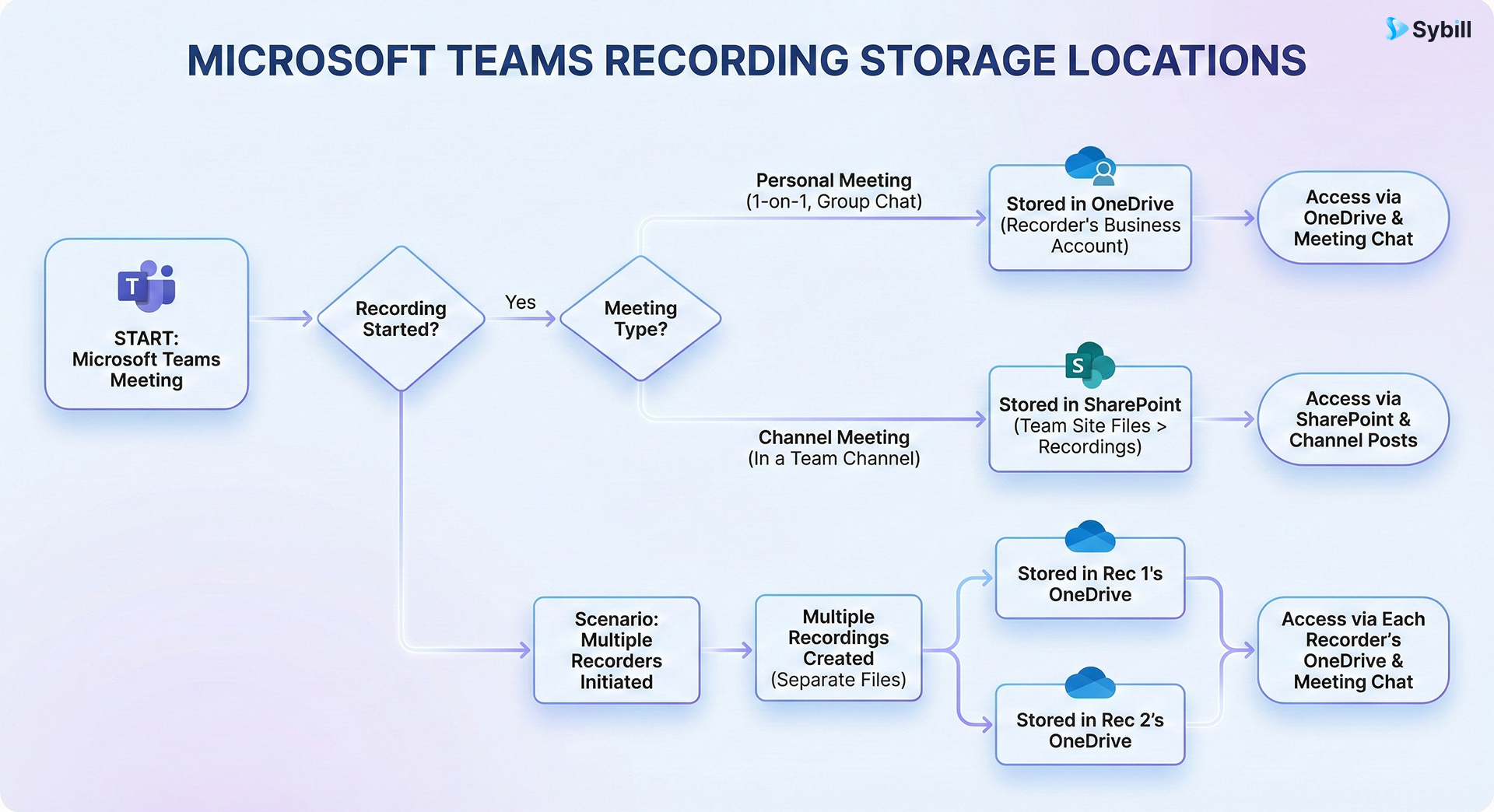
Before we can download recordings, we need to understand where Teams puts them. Spoiler: it's not consistent, and that's intentional (though Microsoft would call it "flexible").
When someone records a standard Teams meeting (scheduled through calendar or "Meet now"):
Storage location: The recording goes to the OneDrive of the person who started the recording.
Specifically: OneDrive > Recordings folder (created automatically if it doesn't exist)
Who can access: Initially just the person who recorded it. They can then share access with others.
File format: MP4 video file
Also created: VTT transcript file (if transcription was enabled during recording)
Why this location: Microsoft assumes personal meetings are "owned" by whoever clicked record, so the file lives in their personal OneDrive.
When someone records a Teams channel meeting:
Storage location: The SharePoint site associated with that Teams channel.
Specifically: SharePoint > Recordings folder in the channel's document library
Who can access: Anyone with access to that channel (permissions are inherited from channel settings)
File format: MP4 video file + VTT transcript (if enabled)
Why this location: Channel meetings are "shared" by default, so Microsoft stores them in the shared SharePoint location rather than individual OneDrive.
When external guests are in the meeting:
Storage rules still apply: Recording goes to OneDrive (personal meetings) or SharePoint (channel meetings) of the person who clicked record.
Access complications: External participants typically can't access the recording directly. The host needs to share it explicitly.
Permissions nightmare: If the recording is in SharePoint and you share the link with an external person, they might see "access denied" even though you sent them the link. You'll need to adjust SharePoint permissions or download and re-share the file.
Here's where it gets messy: if multiple people in the same meeting click "start recording," multiple separate recordings are created.
Person A's recording → Stored in Person A's OneDrive
Person B's recording → Stored in Person B's OneDrive
Result: No one knows which recording is the "official" one, and people waste time searching for recordings that are in someone else's OneDrive.
Pro tip: Designate one person to record, or use an AI meeting assistant that captures every meeting consistently regardless of who clicks record.
Tired of hunting for recordings? Get started with Sybill for free and automatically capture every Teams, Zoom, and Google Meet conversation with summaries, transcripts, and CRM sync: no manual downloading required.
Now that you know where recordings live, here's exactly how to download them.
When someone records a meeting, Teams posts the recording link in the meeting chat automatically. This is usually the easiest way to find and download it.
Step 1: Open Microsoft Teams
Step 2: Navigate to the Chat where the meeting took place
Step 3: Locate the recording message
Step 4: Access the recording
Step 5: Download the file
What you'll get: An MP4 video file of the complete recording. If transcription was enabled, you might also get a VTT transcript file, though this isn't always included in the download.
If you recorded the meeting, or someone shared access with you:
Step 1: Go to OneDrive
Step 2: Find the Recordings folder
Step 3: Locate your meeting recording
Step 4: Download the file
Storage note: OneDrive files can be downloaded individually or in bulk. If you need multiple recordings, select them all (checkboxes appear when you hover), then click Download from the top menu.
For meetings recorded in Teams channels:
Step 1: Navigate to the Teams channel
Step 2: Go to Files tab
Step 3: Locate the recording
Step 4: Download options
Permissions reminder: You can only download if you have appropriate SharePoint permissions. If you see the file but can't download, contact your Teams admin or the person who recorded the meeting.
If your meeting was recorded before your organization migrated to OneDrive/SharePoint storage:
Step 1: Go to Microsoft Stream
Step 2: Find your recording
Step 3: Download (if allowed)
Migration note: Microsoft is phasing out Stream (Classic) in favor of OneDrive/SharePoint storage. If you can't find older recordings, they might have been migrated automatically or could be in a transitional state.
For the most seamless experience:
Step 1: Ensure you're using Teams desktop app (not web browser)
Step 2: Go to Calendar view
Step 3: Open meeting details
Step 4: Open and download
Why this method: It's faster if you remember when the meeting happened but can't find the chat thread.
"The recording should be there but I can't find it" is a sentence uttered in offices worldwide every single day. Here's how to solve common issues.
Why this happens:
Solutions:
Why this happens:
Solutions:
Why this happens:
Solutions:
Why this happens:
Solutions:
Why this happens:
Solutions:
Even when you successfully find and download a Teams recording, you're now stuck with a video file that doesn't solve the problem you actually have.
You download a 43-minute customer call. Your manager asks "what did they say about pricing?"
Your options:
Result: The recording exists but provides zero value because it's not searchable, summarized, or time-stamped to specific topics.
Even if you download the VTT transcript file that sometimes comes with Teams recordings:
You have text, but it's essentially useless for actual review or sharing.
A typical sales or customer call includes:
The downloaded MP4 file contains all of this... somewhere... buried in 40 minutes of conversation that no one will review. None of it gets captured, documented, or acted upon.
After downloading the recording, you still need to:
This takes 20-30 minutes of admin work per call. The recording doesn't help at all, it's just proof that the meeting happened.
One recording? Fine. Ten recordings? Manageable. Fifty recordings from a sales team over a month?
No one has time to download, organize, review, and extract insights from dozens of video files. They pile up in folders, never get watched, and provide zero value to the organization.
This is why sales teams have moved beyond manual recording download to automated meeting intelligence.
Skip the download hassle entirely. Try Sybill for free and get AI-generated summaries, transcripts, action items, and automatic CRM updates, no MP4 files required.
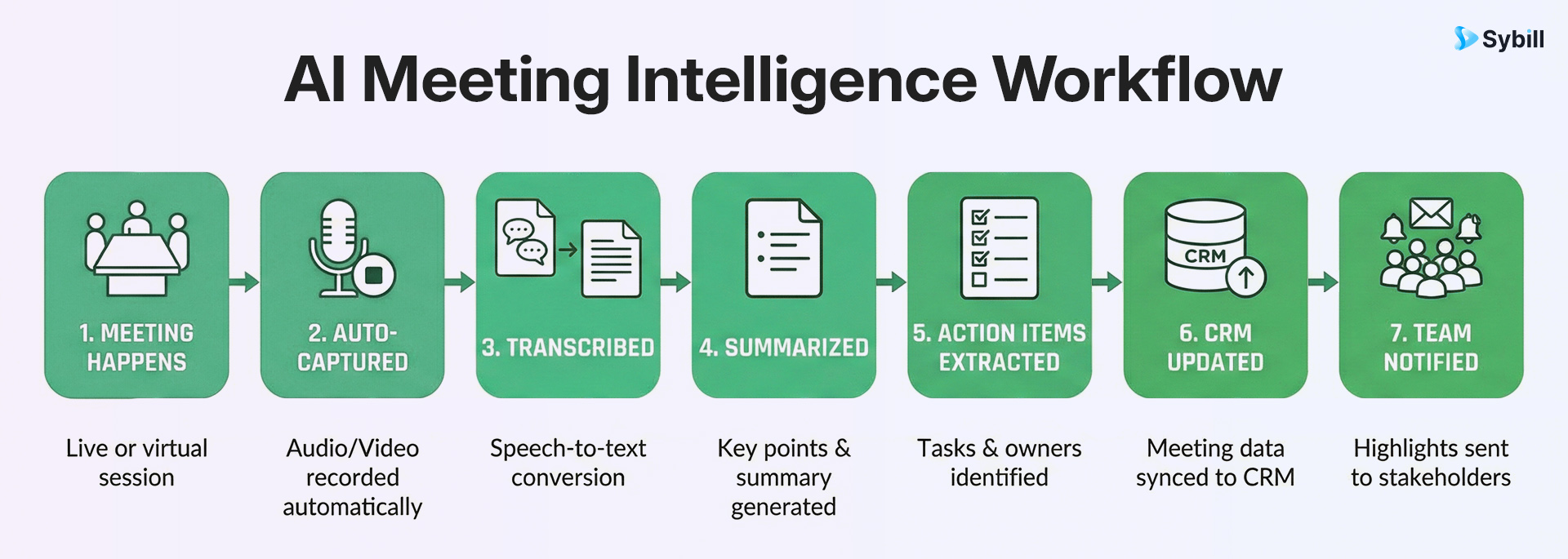
Here's what modern teams do instead of downloading Teams recordings:
Instead of manually recording in Teams (and trying to remember to start/stop recording):
AI meeting recorders like Sybill:
You stop thinking about recording at all. Every meeting is automatically captured, transcribed, and processed.
Instead of a VTT file that's impossible to read:
AI tools provide:
Need to find the pricing discussion? Search "pricing" and jump straight to that timestamp.
Instead of watching a 40-minute recording to find what matters:
AI meeting intelligence delivers:
You get the critical 5% of the meeting surfaced automatically without watching the other 95%.
Instead of manually creating tasks after each meeting:
AI systems extract:
These auto-populate in your task manager or CRM without manual entry.
Instead of spending 30 minutes updating CRM after every call:
AI meeting tools:
Your CRM stays updated without any manual work.
Instead of downloading MP4s and forwarding them:
AI platforms provide:
Everyone who needs access has it, without email attachments or file sharing.
Instead of recordings sitting in folders providing zero insight:
AI meeting intelligence enables:
Recordings become a coaching and improvement tool, not just documentation.
calendar meetings or "Meet Now" calls, recordings are stored in the OneDrive of the person who started the recording, specifically in a "Recordings" folder. For Teams channel meetings, recordings are stored in the SharePoint site associated with that channel, in the channel's document library under a "Recordings" folder. The location is determined by who initiated the recording and whether the meeting was in a channel or a private meeting. All participants can access recordings through the meeting chat where Teams automatically posts a link once processing completes, typically 15-30 minutes after the meeting ends.
Yes, you can download videos from Microsoft Teams unless your organization has disabled this feature for security or compliance reasons. To download a Teams recording, locate the recording in the meeting chat, OneDrive, or SharePoint, click the three-dot menu next to the video, and select "Download." The MP4 file will save to your default Downloads folder. However, downloaded recordings are just video files without searchable transcripts, summaries, or action items, which is why many teams now use AI meeting recorders like Sybill that automatically capture, transcribe, and generate actionable insights from every meeting without requiring manual downloads or storage management.
Teams meeting recordings are typically available for 60 days by default, though this retention period can be configured by your organization's administrators and may range from 30 days to indefinitely depending on company policies and compliance requirements. Once a recording reaches its expiration date, it's automatically deleted from OneDrive or SharePoint unless it was manually saved to a different location or the retention policy was extended. To preserve important recordings beyond the default retention period, you should download them locally or move them to a permanent storage location. Organizations using AI meeting intelligence platforms like Sybill don't face this limitation because the summaries, transcripts, and insights are stored separately from the raw video files with customizable retention policies.