Find us at booth #83, join us for a harbor side happy hour, or catch Gorish’s talk.

Sept, 16-18 > Learn more

%20(1).avif)
Mamta Tainwala

April 17, 2026
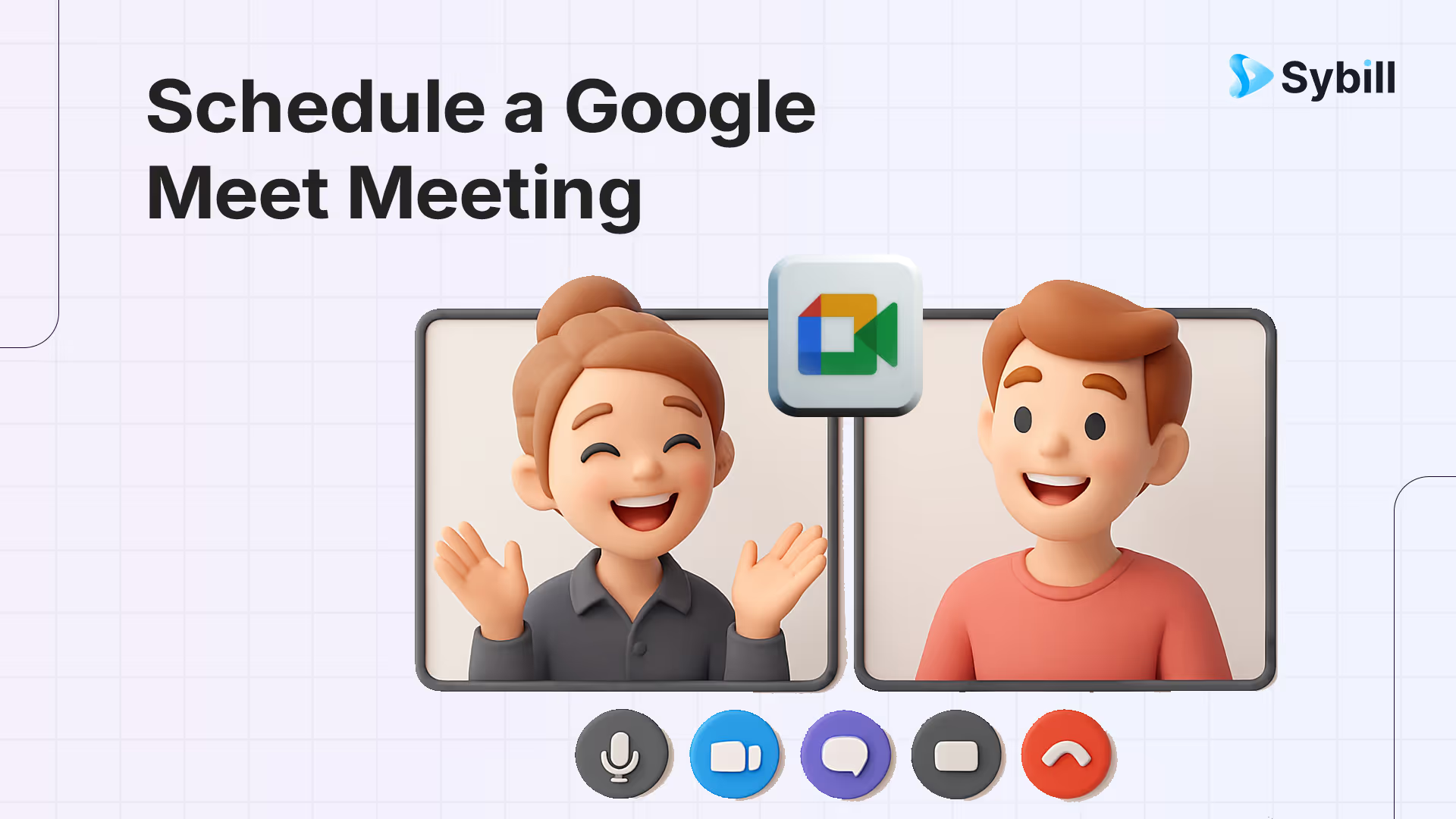
If you work in sales, customer success, or any collaborative team, you probably live inside Google Calendar and Google Meet. You schedule a discovery call, run the demo, handle objections, agree on next steps, and then immediately sprint to your next meeting.
The part that usually gets lost is what happened in the call.
Who asked which question? What did the champion react strongly to? What were the agreed next steps?
To schedule a Google Meet meeting, open Google Calendar, click "Create" or any time slot, add your event title and attendees, click "Add Google Meet video conferencing" to auto-generate a meeting link, then save and send the invite — the process works from Google Calendar on desktop, Gmail's "New event" button, or the Google Meet app on Android and iOS. For sales teams, scheduling the meeting is only half the challenge — capturing what happens during the call is where deals are won or lost, which is why pairing Google Meet with an AI meeting assistant like Sybill that automatically records, summarizes, drafts follow-ups, and updates CRM from every call turns scheduled meetings into pipeline-advancing actions.
This guide helps you in two ways:
If you want to see the types of insights Sybill can pull from everyday meetings, the overview on the Sybill product page is a helpful companion to this guide as you read.
Google Meet is Google’s video conferencing platform inside Google Workspace. It connects tightly with Google Calendar and Gmail, which means you almost never have to copy and paste links or remember meeting IDs. You create an event, add guests, and Meet takes care of the rest.
This is why many sales and CS teams standardize on Google Meet. It is:
On its own, Google Meet is a reliable place to talk. When you combine it with Sybill, it becomes a reliable place to create:
You can get a feel for this flow from rep perspective on the Sybill for reps page and from leadership perspective on the Sybill for leaders page.
You can schedule a Google Meet call from:
In most cases, scheduling through Google Calendar is the best option. It keeps everything structured and also makes it easy for Sybill to auto detect which calls it should join.
Let’s walk through each method step by step, with practical tips along the way.
This is the most common workflow for sales and customer facing teams who are booking calls in advance.
That is the basic part done. However, a few extra habits make these meetings much more productive.
Helpful habits for better Google Meet calls
If you are curious how these meetings look inside Sybill after the fact, you can open the Sybill product page and scroll through the examples of call summaries, topics, and deal timelines while you read this section.
When you are on the move or working from a mobile device, you can still schedule structured Google Meet events.
Even on mobile, it is worth taking an extra minute to add a few lines of context. Those lines often mirror what later shows up in your CRM or what you want Sybill to highlight in its notes and call summaries.
The flow on iOS is very similar to Android, just with slightly different labels and icons.
For sales and CS teams, scheduling from mobile is handy for quick follow ups. For example, at the end of a call, you can pull out your phone, schedule the next step in front of the customer, and know there will be a Meet link attached automatically.
Sometimes you do not want to set up a full event and just need a quick Meet link for a spontaneous conversation.
This method is perfect for quick internal conversations. If you later realize the meeting should have been on the calendar, you can always:
For teams using Sybill, having the meeting in Calendar is useful because Sybill can use your calendar to auto detect which calls it should join and summarize. You can see how this ties into deal workflows on the Sybill for leaders page.
The Google Meet mobile app lets you spin up links quickly as well.
This flow is particularly helpful when you are messaging a prospect or customer in a chat tool and decide that it would be much easier to talk live. You generate the Meet link on your phone, drop it into the conversation, and you are ready to go.
If you already live inside your inbox, scheduling from Gmail can save a few clicks.
On desktop:
This method is handy when you are replying to a long email thread and want to move things to a live conversation. Many users will then create a proper Google Calendar event after everyone agrees on a time, and they simply reuse the same Meet link.
Once the event exists in Calendar, Sybill can automatically pick it up and join at the scheduled time. That is when the conversation turns into structured notes and insights that are visible inside the Sybill product interface.
Scheduling meetings efficiently is important, but it is only half of the story. The other half is what happens with the content of those meetings.
Here is what changes when Sybill is part of your workflow:
During a discovery call or demo, you want your full attention on the customer. When you use Sybill, the system listens for you and produces detailed notes and summaries after the call.
On the Sybill for reps page, you can see how summaries are structured around key topics such as pain points, evaluation criteria, objections, competitors, and next steps. This mirrors what a great human note taker would produce, but without the mental overhead.
Most sales teams know that CRM fields should be updated after every meaningful call. In reality, this rarely happens thoroughly because reps are racing between meetings.
When Sybill is connected, call summaries and key information can be pushed into your CRM with much less friction. That makes pipeline reviews, forecast calls, and deal strategy sessions far more grounded in reality. Leaders get a better view of their deals, which is described in more detail on the Sybill for leaders page.
Because Sybill processes your Google Meet calls at scale, you end up with a library of real conversations that show how deals are won and lost.
You can:
This transforms your everyday Google Meet meetings into a long term coaching asset. Many teams begin with a trial, then expand once they see the impact, which is why the Sybill pricing page breaks things down by team needs.
When your important Google Meet calls are consistently captured, leaders no longer rely solely on gut feel or sparse CRM notes. They can look at:
These types of insights are hard to get from calendar entries alone, which is why many teams explore a Sybill demo once they realize how many conversations are currently “disappearing” after the call ends.
Google Meet makes it simple to schedule and run video calls. Google Calendar, Gmail, and the Meet app give you multiple convenient ways to get a link in front of customers and colleagues.
The real opportunity is what you do with those calls.
When Sybill is added to the picture, your scheduled meetings turn into:
If you are ready to go beyond “meeting for the sake of meeting” and want every Google Meet call to feed back into your revenue engine, take a look at the plans on the Sybill pricing page or book a live walkthrough via the Sybill demo page.
Google Meet links created through Google Calendar remain valid as long as the calendar event exists and is not deleted. Links created directly in Google Meet without an associated event may expire after a period of inactivity. For recurring calls or long running projects, it is usually best to keep everything tied to a calendar event so guests always know which link to use.
Yes. You can add external guests simply by entering their email addresses when you create the event. Depending on how your organization is configured, external participants might see a “request to join” screen when they click the link, which the organizer or someone in the call can approve.
The number of participants depends on your Google Workspace plan. Free accounts support smaller groups, while Business and Enterprise tiers support larger meetings and additional features such as meeting recording and breakout rooms. If you regularly run big training sessions or webinars, it is worth checking which limits apply to your specific plan.