Find us at booth #83, join us for a harbor side happy hour, or catch Gorish’s talk.

Sept, 16-18 > Learn more

%20(1).avif)
Mamta Tainwala

April 13, 2026
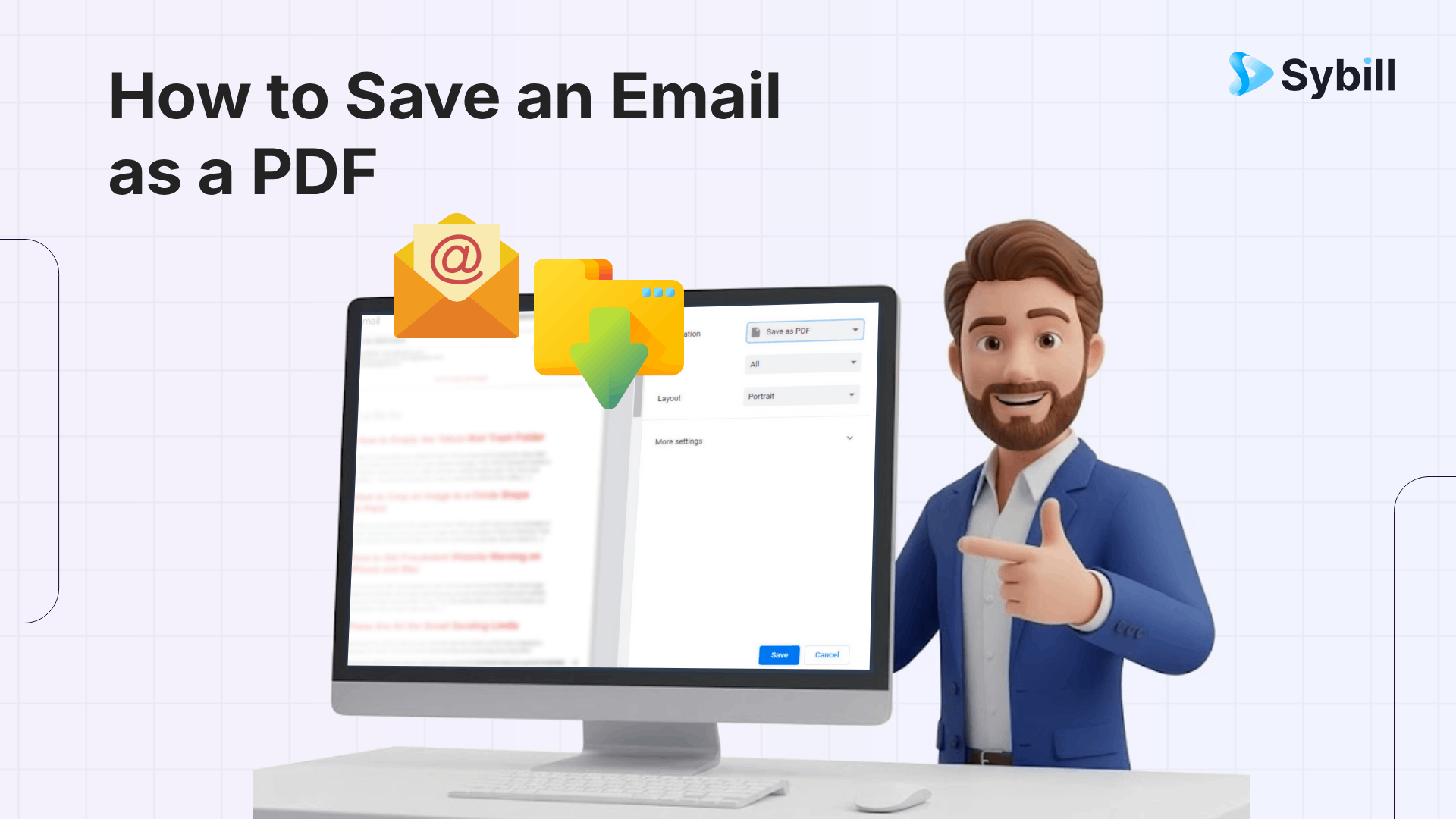
TL;DR: Open the email, hit Print, and change the destination to "Save as PDF" instead of a physical printer. This works on Gmail, Outlook, Apple Mail, and most mobile apps. The whole thing takes about 30 seconds. For sales teams managing approvals, proposals, and deal records, saving emails as PDFs is one of the simplest ways to keep your pipeline documentation clean and accessible outside your inbox.
Your inbox was never designed to be an archive. Emails get buried, accidentally deleted, or lost when you switch providers. A PDF, on the other hand, preserves the exact formatting of the original message and lives wherever you choose to store it.
For sales and revenue teams specifically, there are a handful of scenarios where converting an email to PDF becomes a regular part of the workflow. Signed proposals and pricing approvals from prospects are a good example. When a buyer confirms pricing over email or gives written approval to proceed, that message becomes part of your deal record. Saving it as a PDF means you can attach it to the opportunity in your CRM, share it with legal, or reference it months later without digging through thousands of inbox threads.
The same logic applies to invoices and receipts for software purchases, vendor agreements, partnership confirmations, and even internal emails where leadership signs off on budget or headcount. If the information matters enough that losing it would cause a problem, it belongs in a PDF.
PDFs also solve the sharing problem. Not everyone should be added to an email thread, especially when sensitive deal terms are involved. A PDF lets you share the relevant content without forwarding the entire conversation or exposing the rest of the thread to someone who only needs one piece of it.
Beyond sales, teams in customer success and RevOps also benefit from archiving key communications. Renewal confirmations, expansion agreements, and QBR follow-ups are all easier to manage when they live as organized files rather than scattered inbox messages.
Gmail does not have a dedicated "Download as PDF" button. Instead, it routes the conversion through your browser's print function, which works perfectly well once you know where to look.
.png)
Here is the step-by-step process:
This method captures the full email, including headers like the sender, recipient, date, and subject line. If you have the entire conversation thread expanded, it will save the whole thread as one PDF.
One thing to watch out for: attachments do not get included in the PDF. The print-to-PDF function only captures the message body. If the email has an attached contract, proposal deck, or sales deck file, you will need to download those separately.
The process in Outlook is nearly identical to Gmail, with minor differences depending on whether you are using the desktop app or the web version.
For Outlook on Windows:
For Outlook on Mac:
For Outlook on the web, the process mirrors the Gmail approach. Click the three-dot menu at the top of the email, select Print, and then choose "Save as PDF" from your browser's print dialog.
If you need to combine multiple Outlook emails into a single PDF, such as an entire negotiation thread across separate messages, you can select multiple emails, print them using Microsoft Print to PDF, and they will merge into one file. For more complex merges that include attachments, a dedicated PDF tool like Adobe Acrobat makes the job easier.
For sales teams running their pipeline through Salesforce or HubSpot, saving key Outlook emails as PDFs and attaching them to opportunities creates a cleaner audit trail than relying on email-to-CRM logging alone.
Apple's Mail app can convert emails to PDF, but the feature is tucked behind an unintuitive gesture. There is no "Save as PDF" button. Instead, you go through the print preview screen and use a pinch-to-zoom trick to unlock the PDF view.
.png)
Follow these steps:
This method works regardless of which email account you have connected to the Mail app, whether it is Gmail, Outlook, Yahoo, or any other provider.
For sales reps who are frequently on the move, this is particularly useful when a prospect sends approval or confirms next steps while you are between meetings. You can save the PDF right away and upload it to your CRM or deal folder without waiting to get back to your desk.
If you use the Gmail app on iPhone instead of Apple Mail, the steps are slightly different. Open the email, tap the three-dot menu, select Print, and then use the same pinch-out gesture on the print preview to generate the PDF.
Most Android devices have a built-in "Save as PDF" option directly in the print settings, making the process straightforward.
Here is how to do it:
Some Android devices may show a "Download as PDF" option directly in the Gmail app menu, which skips the print preview step entirely.
The Android workflow is especially handy for field sales reps or account executives who need to capture a prospect's response quickly between customer visits. Save the PDF to a shared Google Drive folder and your entire deal team can access it immediately.
Saving a single email is straightforward, but sales conversations rarely happen in one message. Discovery threads, pricing negotiations, and sales call follow-up chains can stretch across dozens of replies. Saving the full thread preserves the complete context.
In Gmail, open the conversation and make sure all messages in the thread are expanded (click "Show trimmed content" if needed on any collapsed replies). Then use the Print and Save as PDF method described above. Gmail will capture the entire thread as one document.
In Outlook, the approach depends on how the thread is structured. If all replies are part of the same conversation, printing that conversation will include everything. For separate emails on the same topic, you will need to select them individually, print each as a PDF, and then merge the files using a PDF tool.
One limitation to keep in mind: the print-to-PDF method captures only the email body. Inline images typically come through, but file attachments do not. If a thread contains attached proposals, contracts, or sales decks, download those separately and store them alongside the thread PDF.
When you need to keep a record of an email, you have three main options. Each has trade-offs.
A PDF preserves the full message with formatting intact. The text remains searchable, the file is universally viewable, and it is easy to store, share, or print. For anything that might need to be referenced in a professional context, such as deal approvals or CRM notes, PDFs are the best choice.
A screenshot is fast but limited. It works for capturing a small portion of an email, like a single paragraph or a specific number, but it cuts off longer messages, makes text unsearchable, and produces lower-quality files. Screenshots are fine for Slack conversations or quick internal references, but not for documentation.
An EML file saves the raw email data, including headers and metadata. This format is useful for IT or compliance teams who need the full technical record, but EML files require an email client to open them, which makes them impractical for everyday sharing.
For most sales and revenue team use cases, PDF wins. It is the most portable, most professional, and most widely compatible format for preserving email content.
Saving emails as PDFs only helps if you can find them later. A few simple habits make a big difference.
First, use a consistent naming convention. Something like "ClientName_Topic_Date.pdf" works well. For example: "Acme_PricingApproval_2026-03-15.pdf." This makes files sortable and searchable without opening them.
Second, create a folder structure that mirrors your pipeline. A top-level folder per account, with subfolders for proposals, approvals, contracts, and correspondence, keeps things tidy. If your team uses shared drives, make sure everyone follows the same structure.
Third, attach important PDFs directly to the relevant opportunity in your CRM. Both Salesforce and HubSpot support file attachments on opportunity records. This keeps the deal history centralized rather than scattered across individual inboxes and local drives.
Finally, back up your email PDFs regularly. Cloud storage services like Google Drive, OneDrive, or Dropbox handle this automatically if you save files there. Local-only files are one hard drive failure away from disappearing.
Saving one or two emails as PDFs per week is easy. Doing it for every approval, every pricing confirmation, and every follow-up thread across 30 active deals is a different story. That is when the manual approach starts eating into selling time.
The real bottleneck for most sales teams is not the email-to-PDF conversion itself. It is the broader documentation problem: capturing what happened on a call, logging it in the CRM, drafting the follow-up email, and making sure the key decisions are recorded somewhere accessible.
This is where tools like Sybill become valuable. Sybill sits on your sales calls, generates detailed call summaries, drafts personalized follow-up emails based on what was actually discussed, and pushes all of it into your CRM automatically. Instead of manually converting emails to PDFs and filing them after every interaction, you get a system that captures the entire deal record, from call notes to email threads to CRM field updates, without the busywork.
For teams already using sales email automation tools, the PDF workflow becomes less about manual saves and more about making sure the right documentation lands in the right place at the right time. The less time your reps spend on admin, the more time they spend closing deals.
Before clicking Save, take five seconds to verify a few things.
Check the file name. Default names like "Gmail - (no subject).pdf" are useless three weeks later. Rename it to something descriptive.
Skim the preview. Make sure the full message is visible, especially if it is a long thread or contains expandable sections. Collapsed content will not appear in the PDF.
Verify that sensitive information is appropriate to save. If the email contains confidential deal terms or personal data, make sure the PDF is stored somewhere secure and not in a shared folder with open permissions.
Confirm the right message is selected. In threaded conversations, it is easy to accidentally print only the latest reply instead of the full exchange. Expand the entire thread before printing if you need the complete record.
In most email clients, the print-to-PDF function captures only the message body. Attachments like contracts, spreadsheets, or slide decks do not get embedded in the PDF. You will need to download attachments separately and store them alongside the email PDF. If you need everything in one file, a PDF merging tool like Adobe Acrobat can combine them after the fact.
Yes, in most cases. The PDF will retain the text formatting, inline images, and header information (sender, recipient, date, subject). However, some complex HTML formatting in emails, like embedded interactive elements or certain CSS layouts, may render slightly differently in the PDF than they appeared in your inbox.
If the emails are part of the same Gmail conversation thread, expand the entire thread and then print it as a single PDF. For separate emails in Outlook, you can select multiple messages and print them together using Microsoft Print to PDF. For cross-platform or cross-client merges, save each email as an individual PDF first, then combine them using a PDF tool.
Technically, yes, but there are ethical and policy considerations. Some email senders set expiration dates or restrict printing through confidential mode (in Gmail, for example). Even if you can work around these restrictions, saving confidential emails without authorization may violate your organization's data handling policies. Always check before saving.
Dedicated email backup tools like Mail Backup X or SysTools can automate bulk exports. For sales-specific workflows, the more efficient approach is to use a tool that captures the full deal record automatically, including call notes, follow-ups, and CRM updates, rather than converting individual emails one by one.
They are effectively the same thing. "Save as PDF" and "Print to PDF" both use a virtual printer to convert the email into a PDF file instead of sending it to a physical printer. The terminology varies by operating system and email client, but the result is identical.
In most email clients, the print-to-PDF function captures only the message body. Attachments like contracts, spreadsheets, or slide decks do not get embedded in the PDF. You will need to download attachments separately and store them alongside the email PDF. If you need everything in one file, a PDF merging tool like Adobe Acrobat can combine them after the fact.
Yes, in most cases. The PDF will retain the text formatting, inline images, and header information (sender, recipient, date, subject). However, some complex HTML formatting in emails, like embedded interactive elements or certain CSS layouts, may render slightly differently in the PDF than they appeared in your inbox.
If the emails are part of the same Gmail conversation thread, expand the entire thread and then print it as a single PDF. For separate emails in Outlook, you can select multiple messages and print them together using Microsoft Print to PDF. For cross-platform or cross-client merges, save each email as an individual PDF first, then combine them using a PDF tool.